
You have a lot of freedom to customize your Bubble app’s database, including the fields that define each data type. And thanks to this blog post’s nifty trick, you can even assign each “thing” in your database its own hex-code color — which means you can use those colors as dynamic data throughout your page designs.
Click through the interactive tutorial below for an example of how you might use this trick while designing a team leaderboard for a fun trivia app.
To follow the walk-through, you’ll first want to add “Team” as a custom data type in your app. Then, on your leaderboard page, create a repeating group that displays a list of all teams. Each cell of the repeating group should display the team’s information (name, rank, and points) on a group card with a static background color.
You’ll also want to add a button somewhere on the page that opens a popup where users can name a new team and add it to the database. With all that set up, you’ll have the foundation of your build set up, and you’re ready to follow the walk-through.
We’re going to change the card’s background color so that it dynamically features the unique color of that cell’s team instead. First, you’ll need to modify the data structure of your Bubble app so you can assign colors to a custom team:
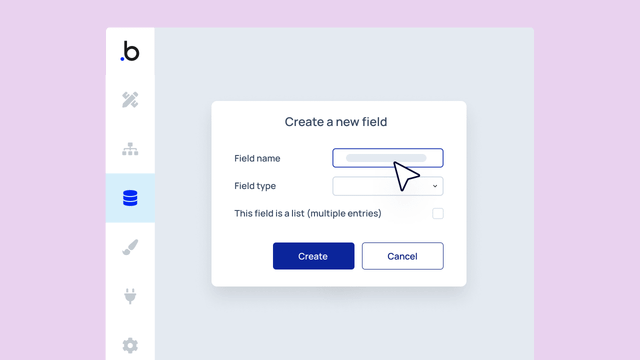
- In the Data tab, create a custom field on your team data type called “TeamColor” that's type text (hex codes are simply a string of text).
- Back in your repeating group, click the group that holds all of the Current cell’s Team’s information.
- Under Appearance, find the background color field and insert dynamic data: current cell’s Team’s TeamColor.
Now the group in each cell will pull in that team’s unique color. To make sure the “TeamColor” field is always populated with a hex code value, you’ll also want to expand the form where users create new teams:
- Add an input for users to provide a hex code when creating a new team. You can use a simple input element for manual text entry or a color-picker plugin — in our walk-through example above, we did this by using Zeroqode’s Air Color Picker plugin.
- In the workflow tab, whenever a user clicks the button to create their new team, save the color-picker input’s value as the “TeamColor.”
You’re all set! Now users can pick and save a unique color for their team and see it displayed with their team name on the leaderboard.
Build for as long as you want on the Free plan. Only upgrade when you're ready to launch.
Join Bubble