
TL;DR: A custom CRM puts you in control of your own data, workflows, security, and integrations. It’s worth building when you’re tired of adapting your business to whatever Salesforce or HubSpot allows, or when scalability and cost matter most long term. With a visual AI app builder, you can generate a working CRM in minutes, then refine the design and logic yourself, without writing code.
Building a CRM that actually fits your business shouldn’t require a six-figure budget or a team of developers. It’s one of the most direct ways to get software that does exactly what you need and fully integrates with your tech stack and workflows. And when you combine AI with visual development, you can build it faster and more easily than ever.
This guide covers what a custom CRM is, when to build one versus buy, which features to include, what it costs, and how to build your CRM step by step using Bubble.
What is a custom CRM?
A custom CRM (customer relationship management) system is software built specifically for your business’s workflows, data structures, and customer model — not adapted from a generic template. Off-the-shelf platforms like Salesforce and HubSpot let you configure and automate a lot, but you’re still working within their structure, their pricing, and their limits. With a custom CRM, you get more control over the data model, workflows, UI, and integrations from day one.
With a custom CRM, you decide exactly what data to track, how your pipeline works, and who can see what, instead of paying for features you don’t need.
Should you build a custom CRM?
CRM software generally falls into three categories: off-the-shelf, customizable, and truly custom, like what you’d build on Bubble.
Which is right for you comes down to:
- Speed. Building a custom CRM takes longer up front than using an off-the-shelf solution. But if your business doesn’t fit that “standard” box, trying to customize an off-the-shelf CRM to compensate can end up taking longer than building custom in the first place.
- Data security and control. With off-the-shelf software, you get whatever security and compliance features the vendor built in. That’s usually enough, unless you’re in a regulated industry like healthcare or finance. And if you don’t have security expertise on your team, the built-in protections in an off-the-shelf CRM may be safer than what you’d build yourself. With a custom CRM, you’re the one responsible for building and maintaining those protections instead of a vendor.
- Scalability. A custom CRM gives you more control over how your system scales, and Bubble’s built-in hosting, database, and automatic scaling can support growth as your usage increases. Off-the-shelf options may introduce pricing, feature, or configuration limits as your team grows.
- Cost. Building custom usually costs more up front, especially with traditional development, but it can save you money long term. Off-the-shelf CRMs tend to get pricier as you scale and add features, and smaller teams often struggle to find one that fits both their needs and their budget.
- Technical knowledge and maintenance. An off-the-shelf solution just requires you to learn the software. A custom solution requires you (or someone else) to build it, plus keep up with maintenance and improvements, but you get full control over updates and features in return. On Bubble, AI generation and visual editing lower that technical bar quite a bit, so you don’t need a developer to build or maintain it.
Custom vs. off-the-shelf CRM
Here’s how the three approaches compare:
| Pros | Cons | |
|---|---|---|
| Off-the-shelf | Quick to set up. No technical skills needed. Usually comes with plenty of documentation and training resources. | Security depends on the vendor. Limited room to scale. Costs can climb fast as you add features. Often built for a specific industry, so it may not fit your exact needs. |
| Customizable | Quick to set up. Flexible enough to fit your workflows. May need some technical know-how to customize. | Scaling or adding features can get pricey. Training takes more effort since the tool's customized. |
| Custom | Full control over security, features, workflows, and UI. Built to match your exact needs and goals. Most flexible for scaling, adapting, and unique business models. Can integrate directly with your other tools. | Usually costs more up front. Takes time to build. Requires technical know-how, or someone to build it for you. |
Build your own custom CRM if:
- You need your CRM to do more than a typical CRM can.
- Your business doesn’t fit the usual CRM workflows or model.
- You need something that can shift and grow as your business does.
Start with a standard CRM if:
- You’re not sure yet what you want from the software.
- Your processes already fit that “standard CRM” box just fine.
There’s a common misconception that small teams without a lot of resources shouldn’t build custom software. Traditional development is usually out of the question because it’s too slow and expensive. But with a visual AI app builder like Bubble, you can build exactly what you need, fast, using the resources you already have.
What features should a custom CRM include?
When you build your own software, you decide exactly what goes into it. While every business has unique needs, most effective custom CRMs share a few core components.
Contact and lead management
Your CRM needs a central database for customer information, interaction history, and how people relate to each other. For example, a tutoring business might need to link parent profiles to student profiles and track communication history for both. Off-the-shelf CRMs can make this kind of setup awkward, expensive, or buried in advanced configuration. When you own the data structure, you control it directly.
Sales pipeline management
A visual pipeline helps your team track where every deal stands. You can build custom stages that match your actual sales cycle, set up automated alerts when deals stall, and require specific data fields to be filled out before a lead can move to the next stage. Unlike generic pipelines, a custom one reflects how your team actually closes deals.
Reporting and dashboards
A sales rep might need to see their daily tasks and active deals on their dashboard, while a manager will want to see team-wide conversion rates and revenue forecasts on theirs. You control what shows up and how, so everyone gets a view built around their job.
Integrations and automation
Your CRM should connect with the tools your team already uses. You can build integrations to automatically log emails, sync calendar appointments, or trigger billing workflows in your accounting software when a deal closes. Automation reduces manual data entry and keeps information consistent across systems.
How much does a custom CRM cost?
Custom CRM costs vary widely depending on how you choose to build. There are three main paths, each with different financial and time commitments.
- Traditional development usually means hiring developers or an agency. Expect higher upfront costs and longer timelines, especially for complex enterprise systems that need custom architecture, integrations, and security work.
- No-code platforms let you build the software yourself without writing code. Your main costs are the platform subscription and the time it takes to learn the tool and build out your workflows by hand.
- AI code generation tools like Lovable, Bolt, and Replit generate a working app directly from a prompt, without a visual editor. To make changes, you prompt again or edit the generated code directly. The result can work for a first prototype, but the generated code typically needs a security and production-readiness review before it’s safe to use with real customer data.
- AI-powered visual development combines the speed of AI generation with the control of a visual editor. With Bubble, you can generate a working MVP in minutes, then customize it directly, saving real time and resources compared to starting from scratch.
Long-term costs matter too. Off-the-shelf CRMs typically charge per seat or by feature tier, while Bubble pricing is based on your app plan and usage. Run the numbers on platform, usage, and maintenance costs for your specific situation before assuming one approach is cheaper.
How to build a CRM
How you build your CRM depends on your situation.
This guide shows you how to build a CRM using Bubble, a visual AI app builder.
Define goals and needs
It’s tempting to jump right in and start building, but taking a step back first will actually save you time later.
Think about:
- Your users. Get clear on who they are, what they need, and how they’ll use the CRM day to day. Loop in your team before you start building so the solution works for everyone.
- Your goals. Decide what you actually want the CRM to accomplish, whether that’s managing leads, speeding up sales, or connecting scattered tools and data into one place. Your biggest goals point to which features to build first.
- Your needs and core features. Use your answers above to map out the specific capabilities, data, and features your CRM needs, whether that’s a sales pipeline, a marketing hub, or something else entirely. This is what keeps you from just rebuilding a generic CRM with extra steps.
Take a music school CRM, for example: The “customer” and main user is often a parent, while the student is a different person entirely. For this kind of CRM, a top goal might be tracking family relationships across every interaction, and a core feature would be linking parent and student profiles as distinct, connected records.
Prompt Bubble AI
With your goals defined, it’s time to start building. After you enter your prompt, chat with Bubble as it asks clarifying questions so you can refine features, adjust the look, or upload an image to show the style you want.
Bubble AI generates a working MVP in minutes and then brings you directly to the editor to preview and iterate on your app.
Preview your CRM
Once you’re in the Bubble editor, you’ll see the MVP Bubble AI just built. Click the “play” icon in the nav bar to preview it and see the app in action. Use this to review the AI’s output.
Keep chatting with the Bubble AI Agent (beta) to build features and troubleshoot, or edit directly in the visual editor whenever you want.
AI gives you a solid starting point, but it’s not the finished product. Here’s a checklist for reviewing the AI output of your CRM:
- Review the design and UI (user interface) of the app.
- How does your app look and feel? Is there anything with the design or styles that you want to change?
- Is navigating the app clear? Does the menu or nav bar have the appropriate pages and links?
- Does your app have the pages it needs? Are any pages incomplete or hard to find?
- Are there any places where you’ll want to update the copy of your app?
- Review each feature of your app, including buttons, links, search functionality, and other features (input/outputs).
- Does each button or field work as expected? Are you able to add, edit, and remove data?
- Are any features missing or not working properly?
- Does every button, element, and feature have a complete workflow? That is, if you fill in a form and click “Add new user,” does it really add a user to the screen and the database?
- Are any steps in any workflows missing or incomplete? (For example, does every popup close after a user is finished with it?)
- Review the data and data structure of your app.
- Does your app have all the relevant and needed data types and fields? For example, are all of the appropriate fields for new users, clients, leads, etc. included in the database?
- What new data types or fields do you want to add to your app?
- Are there any data types that would be better suited to option sets (static data types or dropdown options, like statuses or dates)?
- Is the data organized in the most logical way given the features of your app?
As you go through each area, take notes on what’s working, what’s missing, and what needs to change. Then return to the editor and address them one by one.
Review and configure your CRM’s data structure
Since data is the foundation of how your app works and what it shows on-screen, start here.
Data types are the main categories of things stored in your app’s database, such as Contact, Lead, Company, or Deal. Fields are the individual pieces of information on those types, like client name, lead status, email, or address. All of this information gets stored in the database that makes up the backend of your app.
On Bubble, you edit the data and logic of your app visually, with no coding needed. That gives you full control to make all the changes you outlined in the previous step.
Bubble AI may generate initial data types and fields based on your prompt, but review them carefully (especially privacy rules and sensitive CRM data) before using the app with real users. In the example below, Bubble AI generated quite a lot of data types, including contact, family relationship, notes, users, and so on.
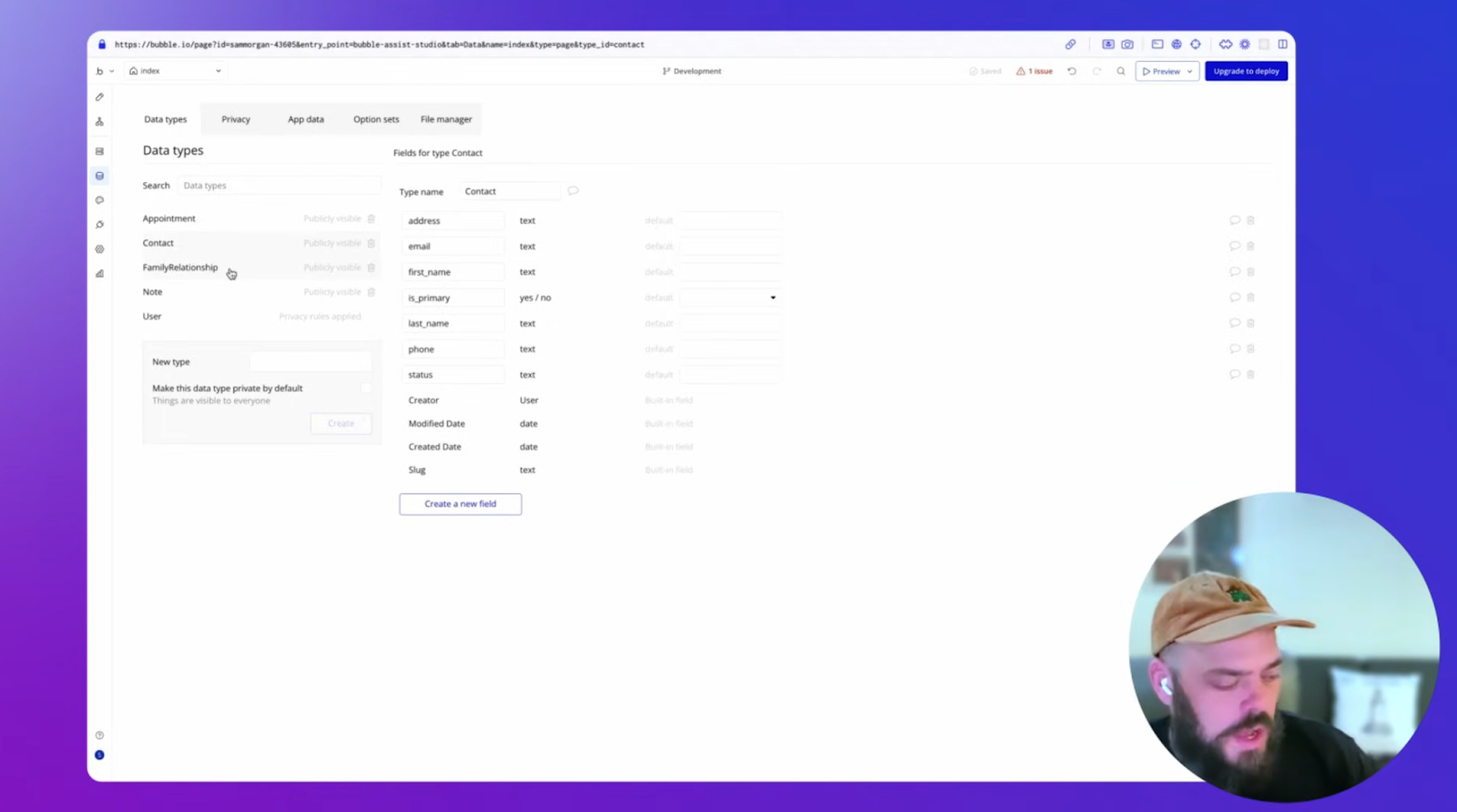
Within those data types, you’ll also have fields. For example, under the data type “Contact,” you’ll have fields such as address, email, first name, and last name.
You’ll likely notice some data types or fields you want to add, and others Bubble AI generated that you don’t need. You can add or remove them manually. To add new ones with AI, go to the Data tab and click Generate with AI. This opens the Bubble AI Agent with a pre-filled prompt. Edit the prompt to describe the feature you’re building, then send it, and the Agent will generate fitting data types and fields.
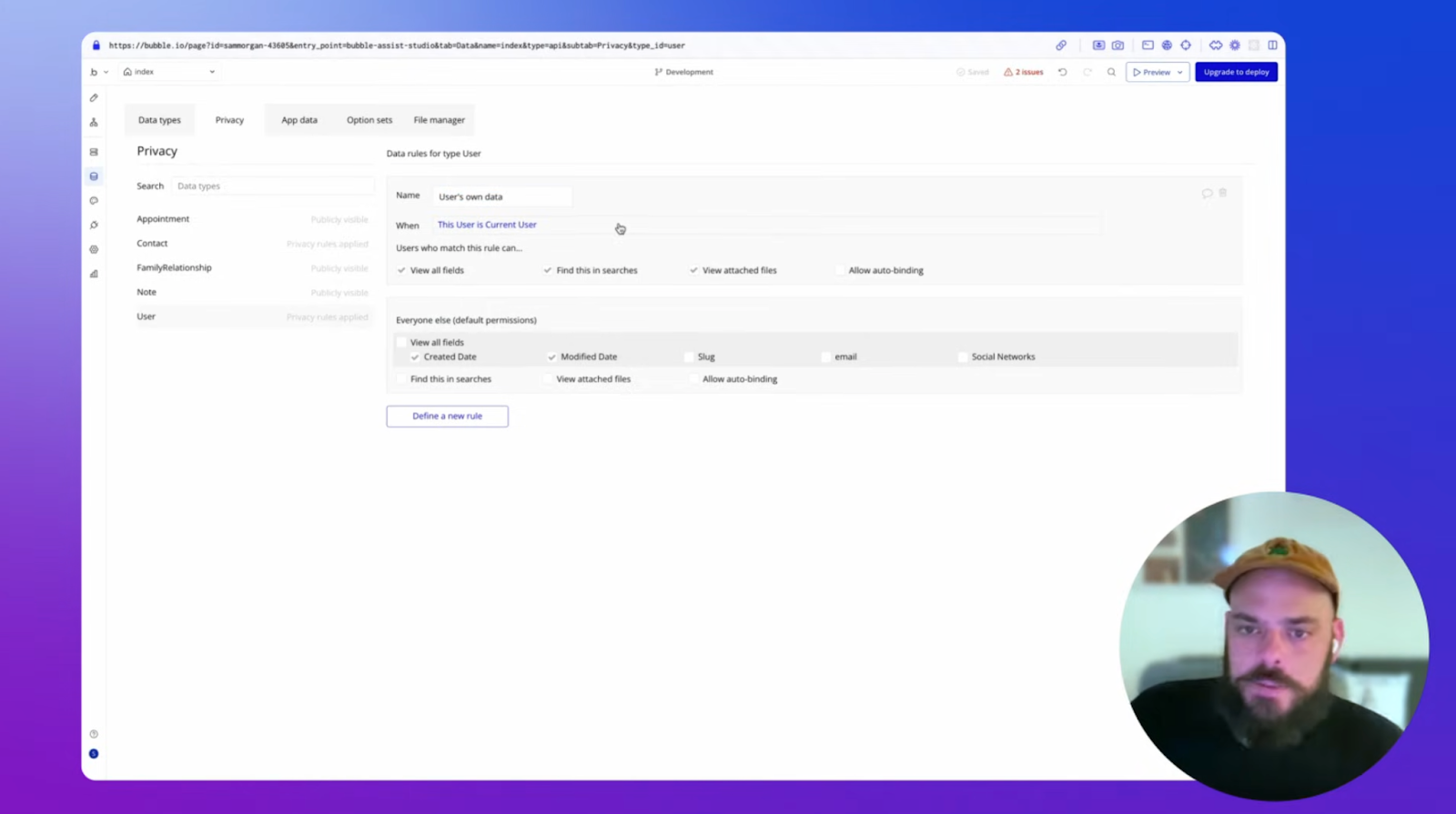
This is also a good time to check on the default privacy settings the AI created for you. Use the Privacy tab to set up rules visually and to review what the AI has already done.
Bubble AI may generate privacy rules by default for data types that appear sensitive, including user-related data, but always review and refine those rules in the Privacy tab to verify that users can only access the data they should.
Refine your CRM design
Next, refine the design of your app so it looks and feels the way you want. Most of this happens in the visual editor’s Design tab, where you can adjust both macro and micro design changes using drag-and-drop tools, with full customization and control for pixel-perfect design.
Think about design on three levels: element design, page design, and overall styles. Styles guide the overall look and feel of your app, things like background colors, primary fonts, and standard button colors. Use the Global tab in the Bubble editor to adjust these variables once, and you’ll see the changes reflected across your entire app.
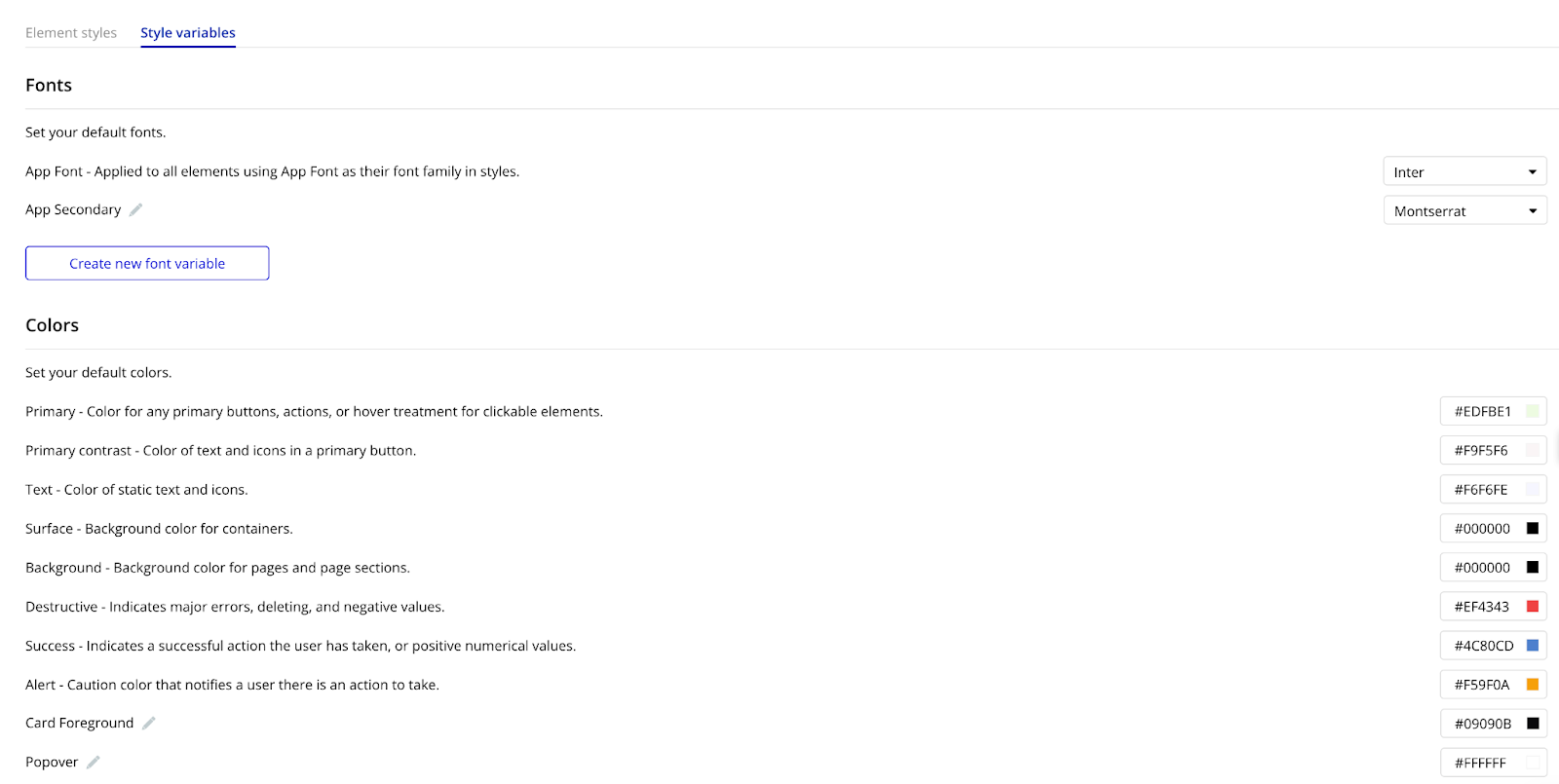
With big-picture changes in place, you can then drill down into page-level and element-level changes. From the Design tab, click on any element and use the popup to fine-tune the visual feel and functionality of that element.
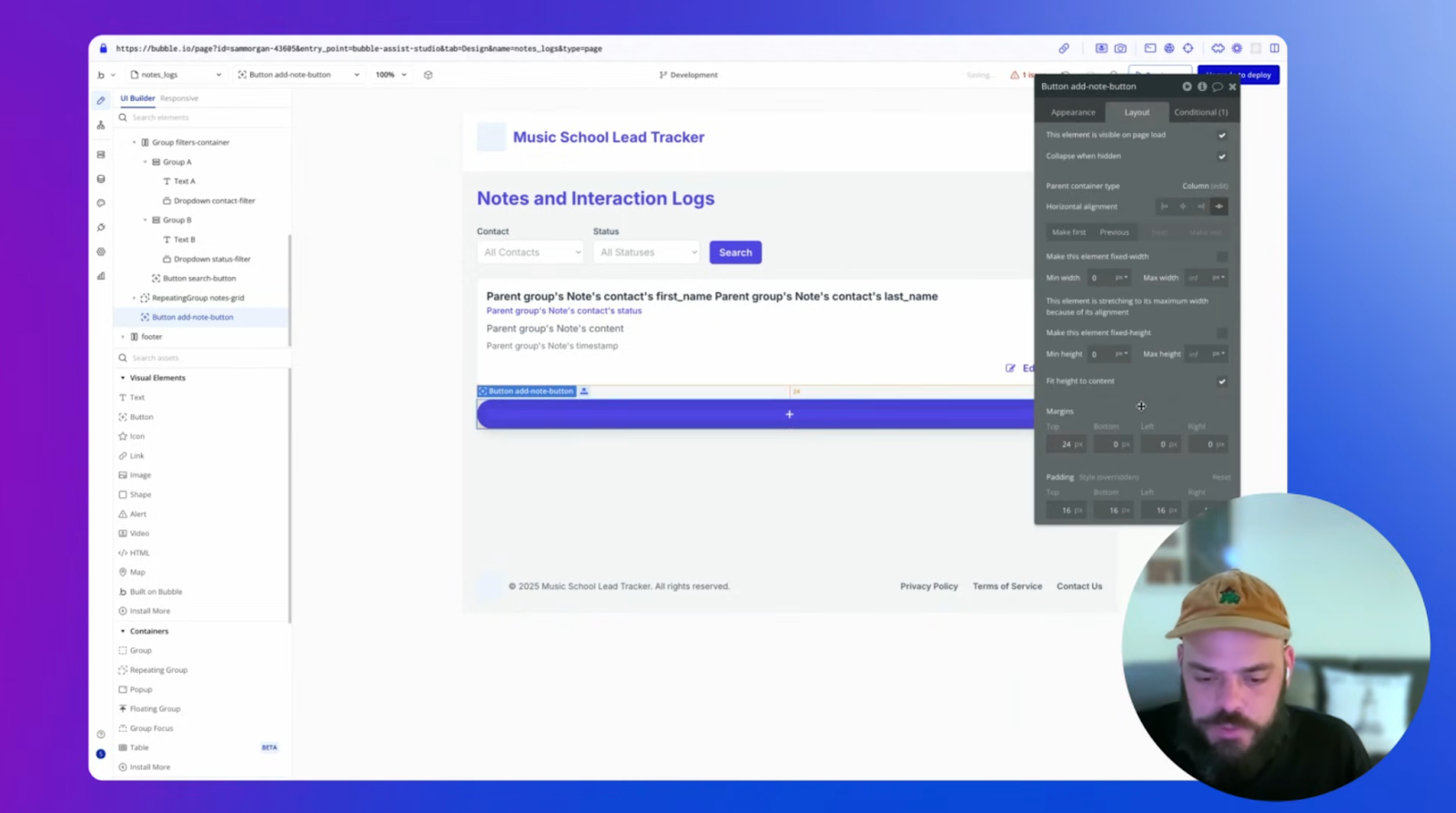
You can also adjust page design and UI the same way. In the example, we noticed that some of the buttons on the generated “Notes” page were crowded. To fix this, click on the button, and then adjust the margins or padding to add some space around them.
Build out CRM features and integrations
With your design and data in place, it’s time to add logic, the workflows that connect what the user sees to what your app’s backend holds. For example, with a CRM app, there’s a long list of features and workflows you might need to build, such as:
- Signing in a user
- Creating and editing leads
- Displaying leads in a dashboard
- Adding and changing lead statuses
- Searching and filtering leads
In our example, Bubble AI did a pretty good job at building out the basic functionality for us. When you go to the “Contact Management” page, you can click the “Add New Contact” button, fill out the popup form with contact details, add a status, and save new leads to the database.
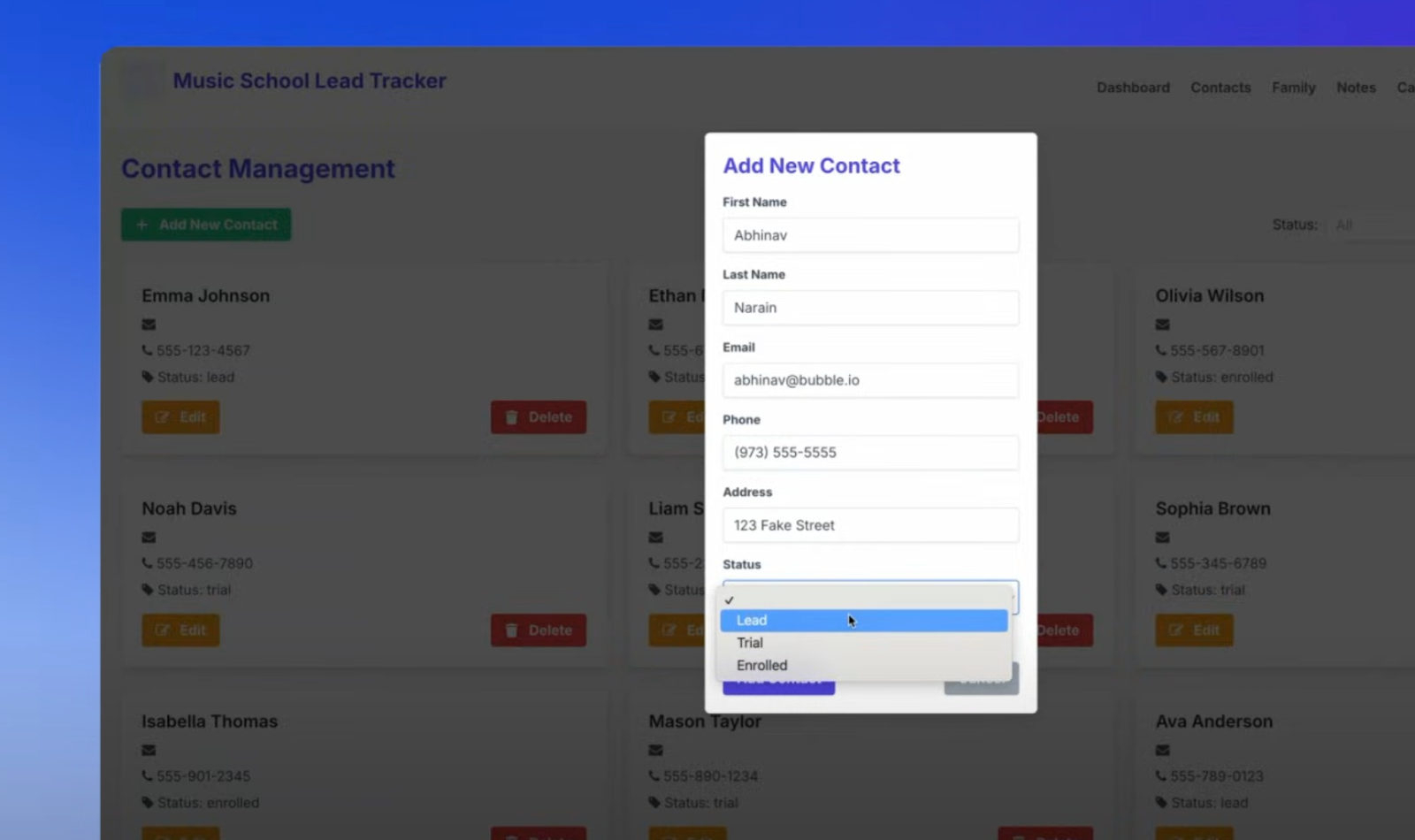
But even if the AI already got these workflows working, you’ll still want to familiarize yourself with them so you can make adjustments and add new ones.
When you click on an element, for example, the “Add new contact” button, select “Add workflow” from the editor popup. This will bring you to the logic, or the workflow, that powers that button.
On Bubble, workflows are built visually. You can see the logic behind each action instead of digging through code. You can see that with this example:
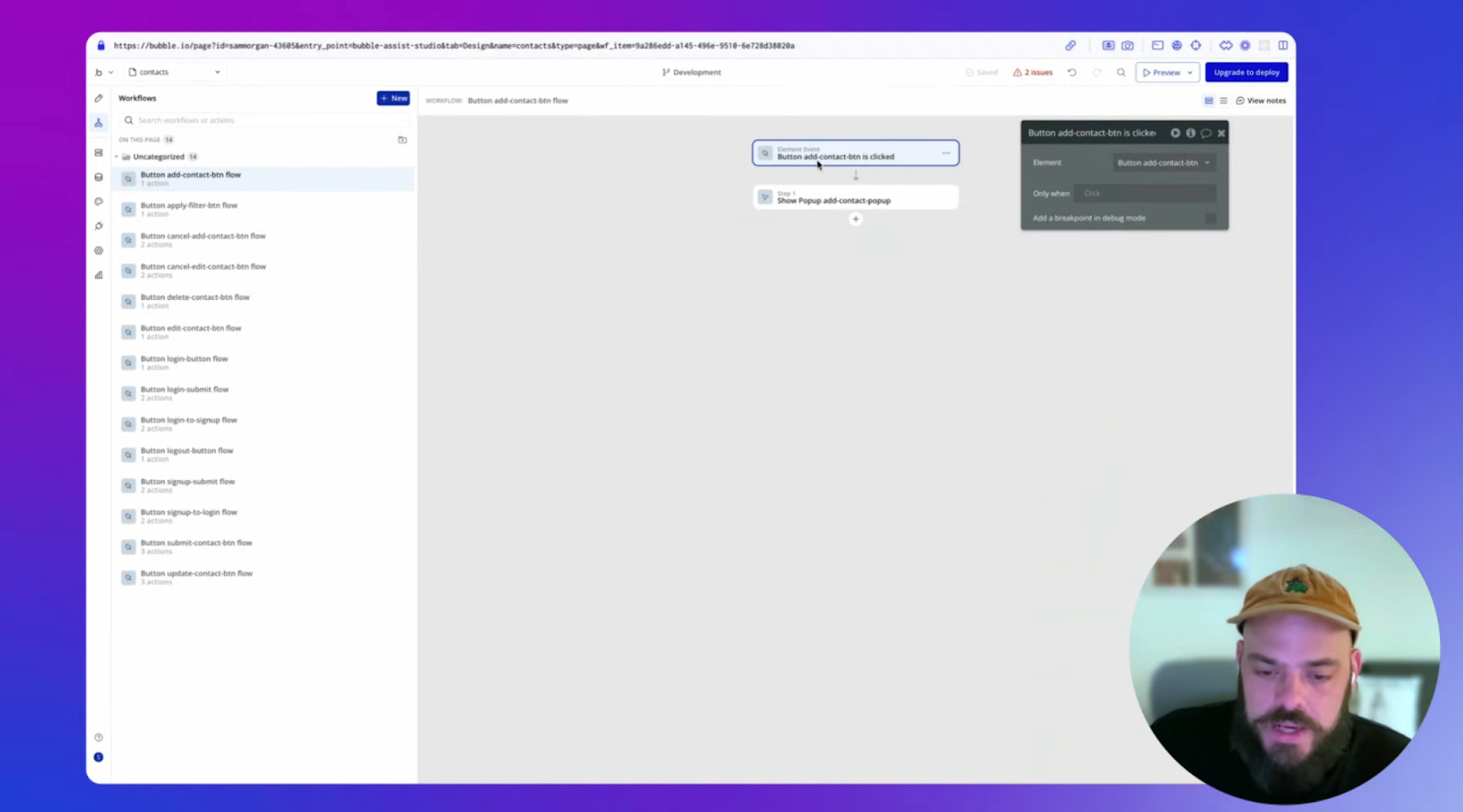
That’s a simple example, but you can make workflows as detailed or complex as needed to power more advanced functionality.
Add any action to your workflow by clicking the “+” button and choosing the next option from the dropdown. The popup editor allows you to specify data, elements, and other key features to make it work exactly how you’ve designed.
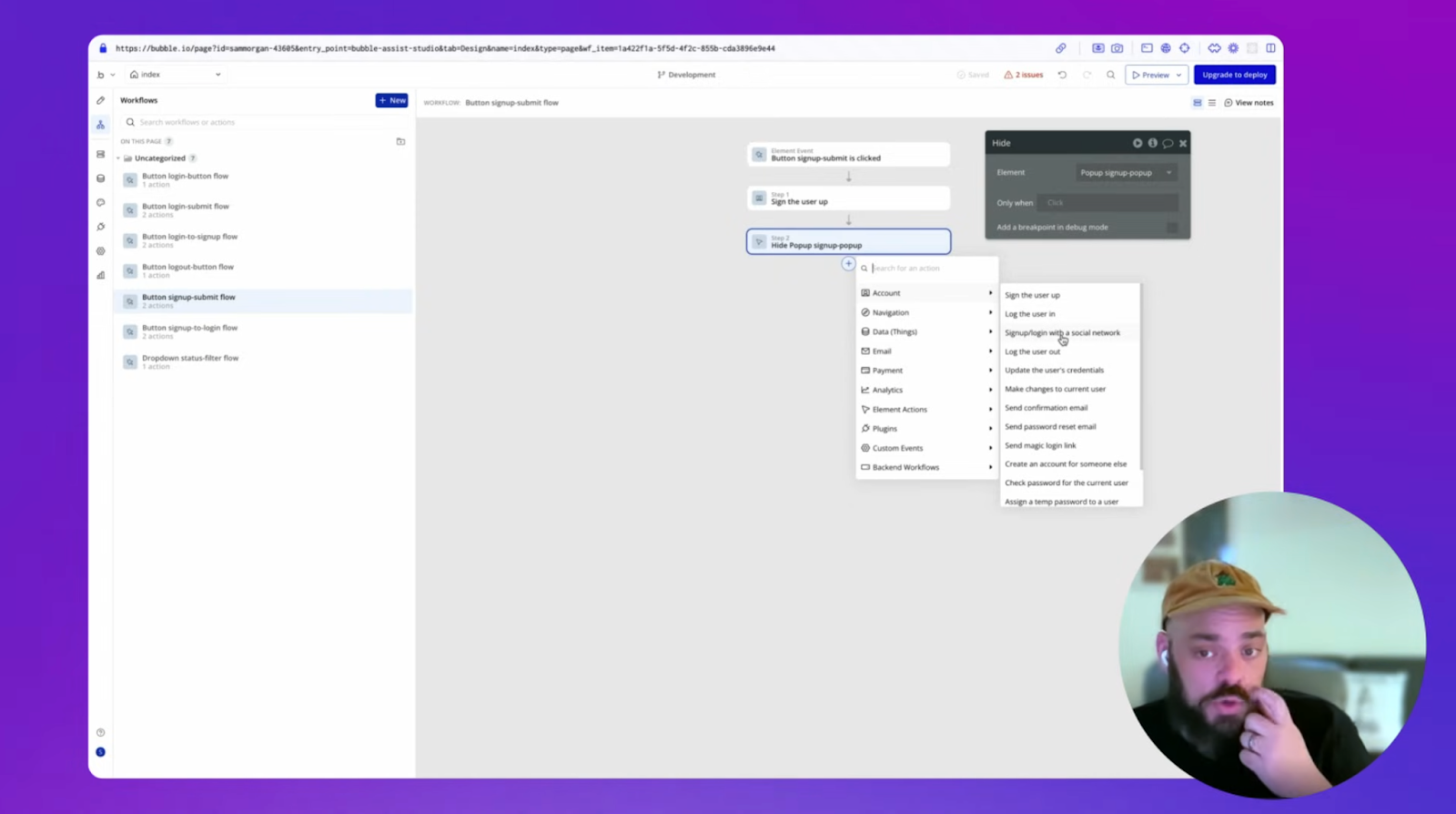
You don’t have to build every feature your app needs from scratch. Beyond what AI builds for you, you can also lean on Bubble plugins to integrate other tech, like sales automation tools or your accounting system, into your app.
For example:
- Collecting or processing payments? Use the Stripe integration to integrate Stripe into your app rather than building payment processing from scratch.
- Want to add maps, directions, or locations? Pull in the Google Maps integration to display location data visually.
- Need to track usage of your CRM? Use Bubble’s Google Analytics integration to send app traffic and event data to GA4. If you want to display GA4 data inside your CRM dashboards, you may need to connect to the relevant Google APIs or another analytics integration.
If there’s any integration or tech you want to add that Bubble doesn’t have a pre-built plugin for, you can add it yourself using the API Connector.
The API Connector lets you connect Bubble to compatible external systems with RESTful APIs, so you can integrate many of the tools your team already uses into a single system.
Test, launch, and iterate
Now that you’ve built out design, data, and logic for your own CRM, it’s time to get ready to launch it for your team.
First, test your app yourself, then with a small group of your team or end-users. This helps you catch bugs and confirm everything works smoothly.
On Bubble, there are several ways to test your CRM software:
- Use preview mode and the debugger. Preview mode lets you see and use your app just as a user would. Use it to test buttons, design, UI, and functionality. Then, use the debugger in preview mode to analyze workflows and logic. If something doesn’t work as expected, the debugger will outline the actions step by step to help you find and fix the broken links.
- Look at the issue checker. The issue checker (in the upper-right corner of the Bubble editor) scans your app for inconsistencies or errors. Use it as a quick checklist of things to fix before you launch.
- Use dev builds for mobile CRM systems. If you built both a web app and a native mobile app on Bubble, dev builds let you preview it on a real device before you launch. (Requires a paid plan.) You can also use simulated device preview to test in the browser, but it offers less true-to-life functionality than a dev build.
- Run in-app analytics and experimentation with plugins. Tools like Mixpanel or Optimizely can help you monitor usage, run experiments, and identify what to improve before and after launch so you can optimize your CRM for your team.
When you’ve resolved critical issues, tested core workflows, and confirmed the CRM is ready for real users, it’s time to launch it for your team and keep improving from there. Real-world usage will give you the most valuable data and feedback on how to improve. For fast-moving startups, getting an MVP launched quickly shows you exactly what to build next as your business needs change. So don’t be afraid to start using your CRM solution even if it’s not “perfect.”
Launching on Bubble is straightforward. After you’ve reviewed your workflows, privacy rules, and issue checker, click Deploy to push your Bubble app live. You can also launch mobile apps directly to the Apple App Store and Google Play Store from the Bubble editor (mobile apps take a bit more time to launch since each app store has its own approval process, but Bubble helps you prepare and package your app to make it as smooth as possible).
Finally, keep iterating on your app based on your team’s needs and experience. You can use the Bubble AI Agent in the editor to help you troubleshoot and fix issues, and everything can be done without code, using the visual editor you’re already used to.
Build your custom CRM with Bubble
Bubble lets builders vibe code without the code, combining the speed of AI with visual control so you can launch a fully capable custom CRM. Bubble gives you:
- No developer required. AI generation plus a visual editor means a small ops team or solo founder can build a working CRM without hiring engineers or waiting on a dev team.
- Room to grow. Built-in hosting, database management, privacy rules, security features, and automatic scaling mean your CRM won’t buckle as you go from a handful of users to a full sales team.
- Speed without getting stuck. Generate a working MVP in minutes with AI, then chat with the Bubble AI Agent or edit directly in the visual editor.
- Full control, start to finish. Your CRM stays yours to customize, down to individual fields, workflows, and UI elements, so it never feels like a generic tool with extra steps.
Builders see the value firsthand. As Chad Sakonchick, founder of BetterLegal, said:
“Eventually, instead of having internal apps, and Asana, and a contact center, we’ve slowly rolled everything up into Bubble. Any third-party services, we just take what we like about the system, remove everything that we don’t need, build it in Bubble, and then remove that cost from our P&L. It’s been awesome to build our own perfect tool rather than using a bunch of almost-there tools.”
Bubble makes it easy to learn as you build. Start with a CRM template to skip the blank page, then customize it to fit your business. The Bubble Basics for AI Builders series walks you through the fundamentals, the Bubble Manual has answers for whatever you get stuck on, and the Bubble Forum puts thousands of experienced builders in your corner. Want expert hands on it? A Bubble agency can build it out for you.
It’s free to start building and testing, so you’re not locked into a plan until you’re ready to launch. See for yourself how straightforward custom CRM development can be. Get started for free →
Frequently asked questions about custom CRM
Can I create my own CRM without coding?
Yes. Bubble lets you build a fully functional CRM using AI generation and visual editing, and in nearly every case, no code is required at all.
What are the four types of CRM?
CRM systems are commonly grouped into four categories:
- Operational: Automates sales, marketing, and service tasks to improve day-to-day efficiency.
- Analytical: Prioritizes data analysis, reporting, and forecasting to support business decisions.
- Collaborative: Emphasizes communication and data sharing across departments and teams.
- Strategic: Focuses on long-term customer relationship tracking and engagement.
A custom CRM can combine elements from multiple categories based on your specific needs.
How long does it take to build a custom CRM?
Traditional coding for a custom CRM typically takes several months. AI-powered visual development platforms like Bubble can generate a working foundation in minutes, with customization, testing, and launch readiness typically taking anywhere from days to a few weeks depending on feature complexity, integrations, and security requirements.
Build for as long as you want on the Free plan. Only upgrade when you're ready to launch.
Join Bubble