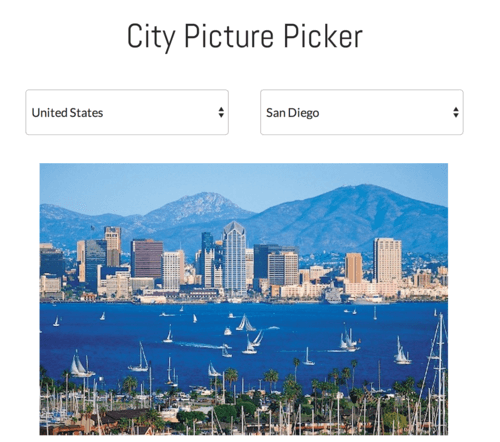
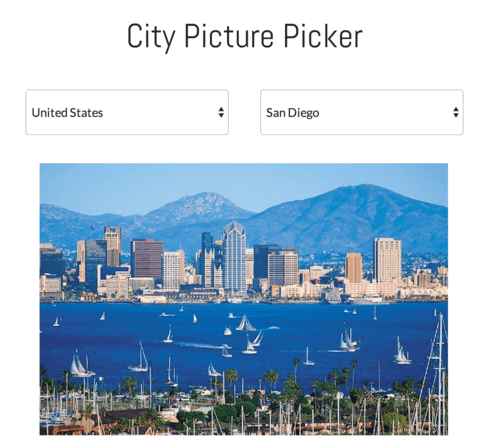
One question that comes up often in Bubble forums is “How can I build a form with dependent dropdown elements?” In other words, how can there be multiple dropdowns on a page, where the options of the second or third dropdown depend on the content of the first one (e.g. picking a city once a country has been selected). We’re going to build an app that does this, and then display a picture of the city that has been selected in the second dropdown.
You can see the app here: https://bubble.i0/site/countrycity/
And you can edit the app here: https://bubble.io/page?id=countrycity
Here is what it look likes:
To do this, we want to have the choices of the dropdown menus to be dynamic, and have their options come from our app database.
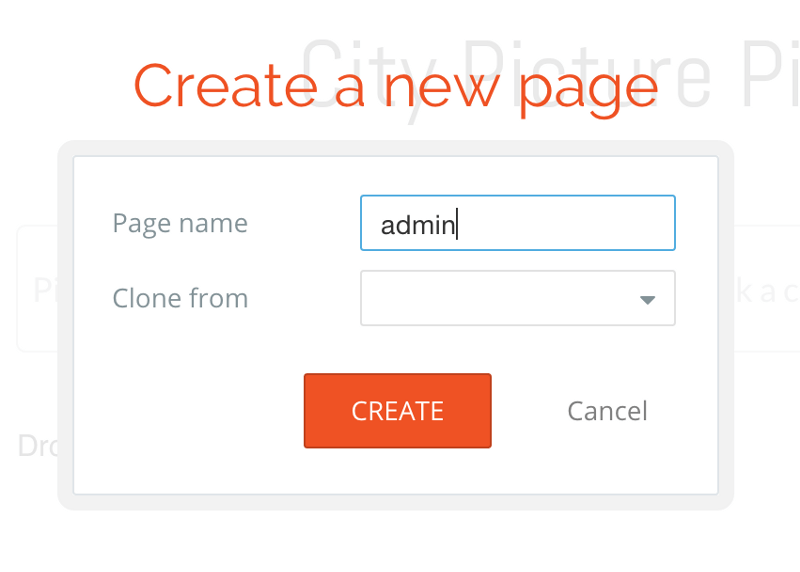
The first thing we need to do is to define the different options we want to offer. In other words, the different countries and cities. We do this in an ‘admin’ page, where we’ll be able to create some ‘things’ and define some relationships between them. Let’s first create a new page named ‘admin’.
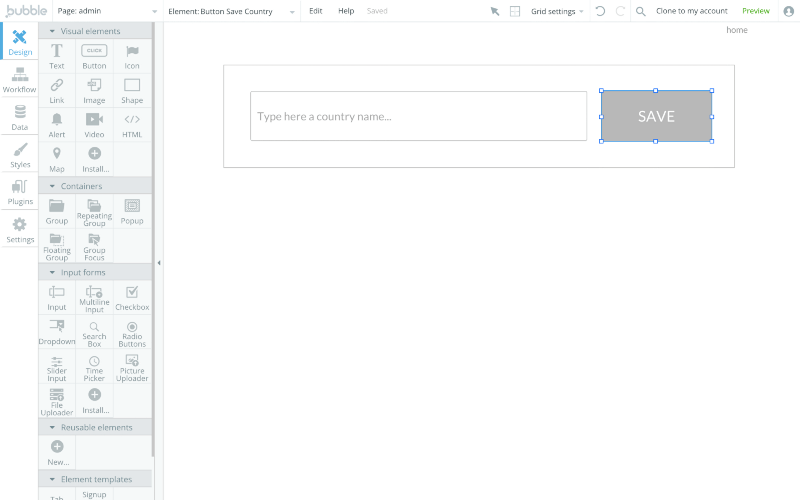
Alright, let’s get into the logic of our data structure. In our country/city example, we want to create two types of things. One is a ‘Country’, one is a ‘City’. Let’s start with the country form. In a simple case, a country has a name. So let’s add a input form. We also want to add a save button.
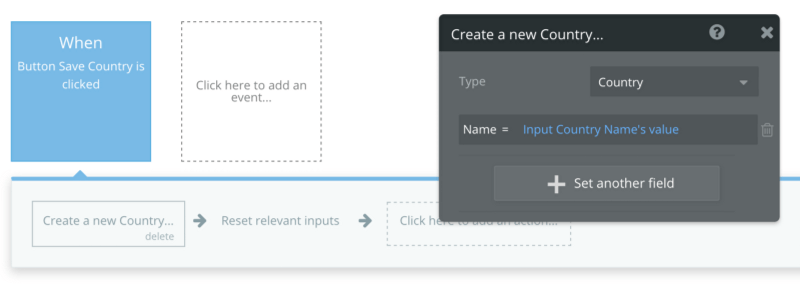
The workflow here is quite simple: when the user clicks on ‘Save’, we create a new ‘country’ with this name. We define the ‘Country’ type as we build the workflow.
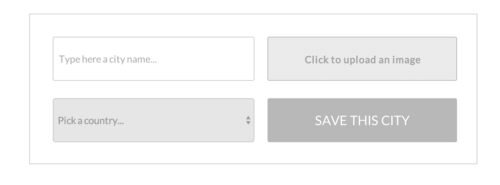
Now let’s build a second form for the city. Let’s insert an input element for the city name and a picture input for the picture. As we want the city to be attached to a country, let’s insert a dropdown where we’ll pick the relevant country. We also want a ‘Save this city’ button.
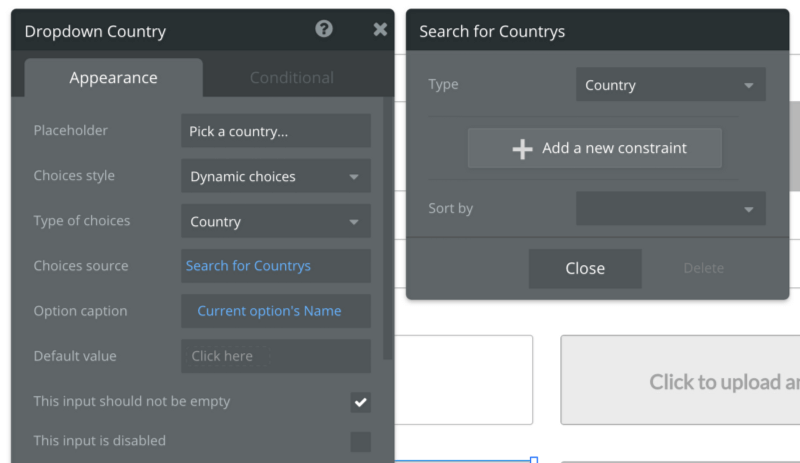
The options of this dropdown should be dynamic, as they will be the list of countries that have already been created. To do this, let’s pick ‘Dynamic choices’ as ‘Choices style’ and then pick ‘Country’ as a type of choices. For the list itself, let’s just want to search for all countries that have been created. For the caption, we can pick Current option’s name. Here is what it looks like.
Good. Now let’s build the workflow that saves the city when the users clicks on save.
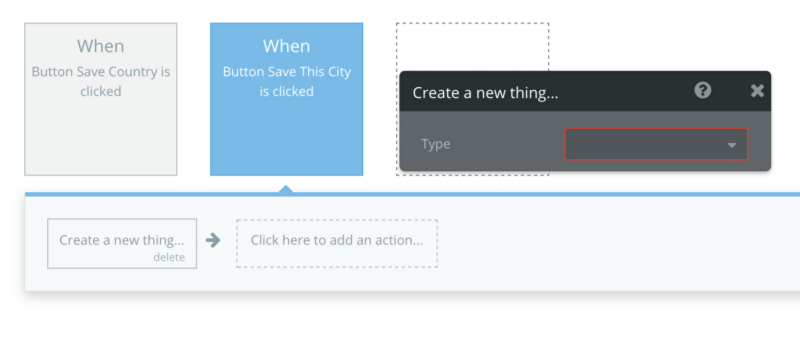
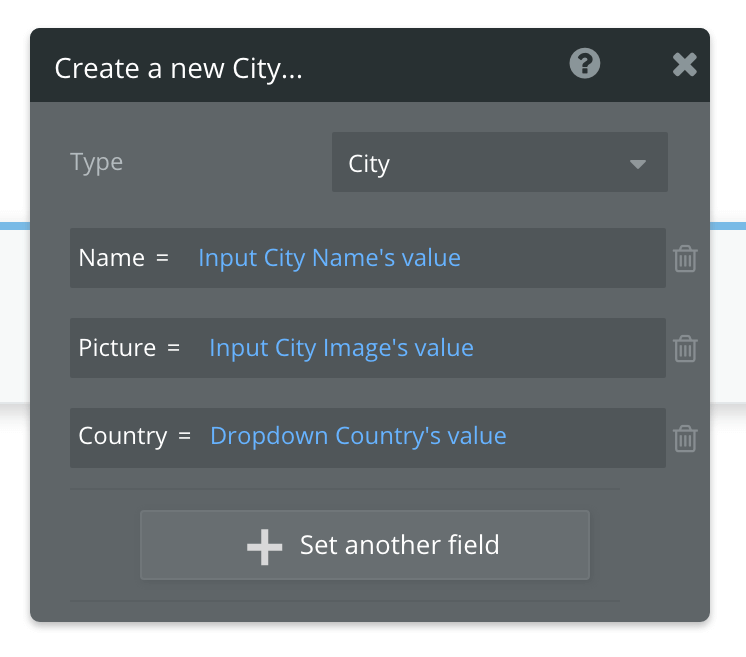
We want to use the action ‘Create a new thing’ here. The type of thing we’re going to create is a “City”. A City will be defined by a “name” and a “picture” – so let’s create both fields. The name and image fields are quite straightforward; it’s a text and an image. For the country field, the type should be ‘Country’ (which is the type of things we just created).
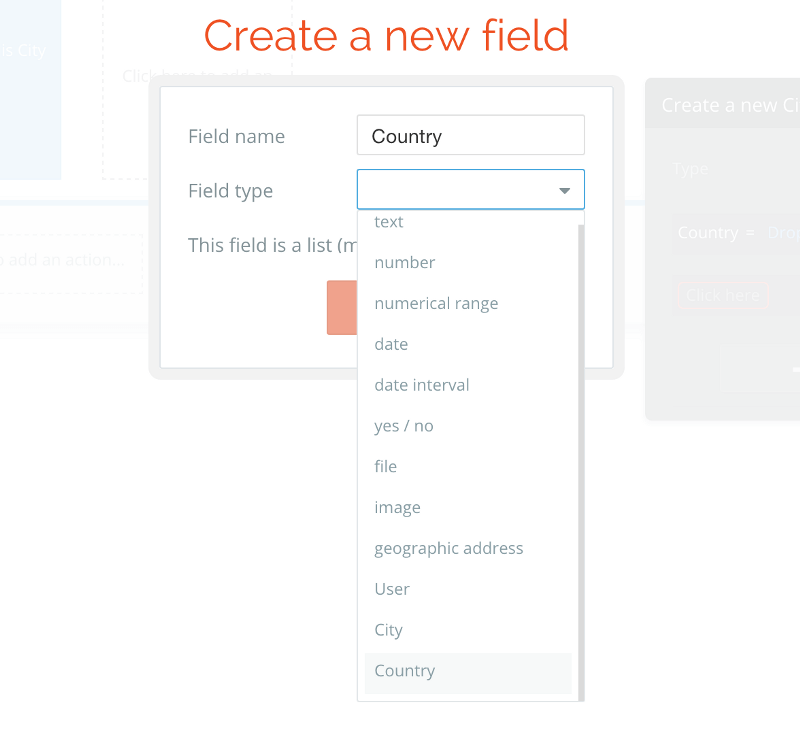
So when we create the new city, we save the country that is selected in the dropdown.
Alright, we’re good with our data structure and submission forms. We can now move to the customer-facing page where people can select a country and a city (and see a picture of it). Let’s add two dropdown elements on our main page and an image below them.
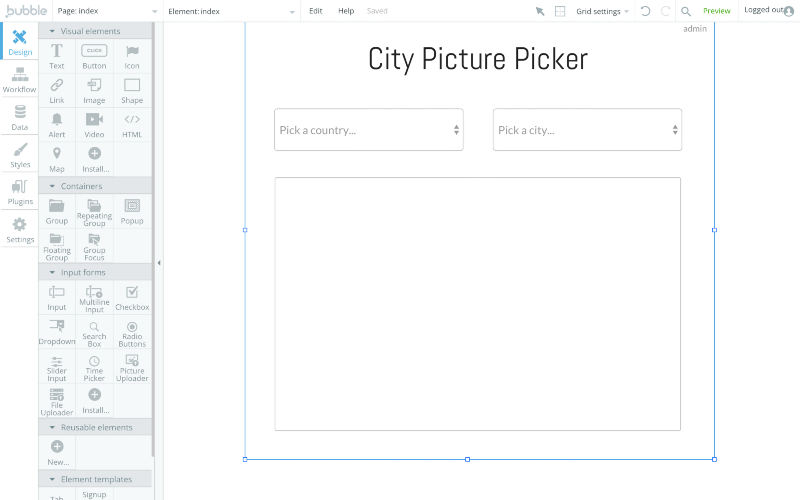
For the first dropdown, let’s change the placeholder to ‘Pick a country’ and make the choices dynamic (as they’re coming from saved countries). We display all submitted countries, so we don’t have constraints on our search.
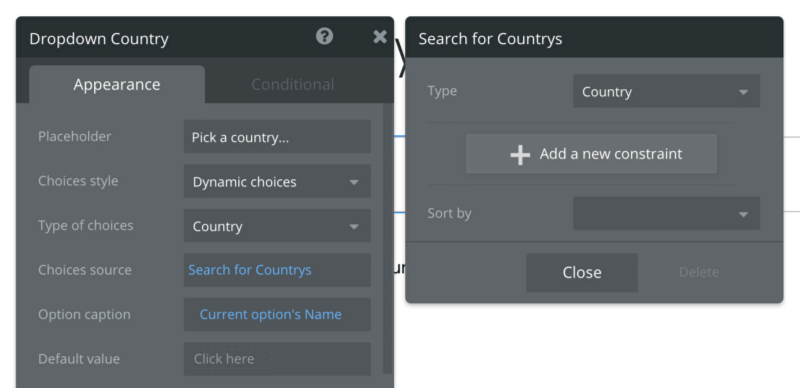
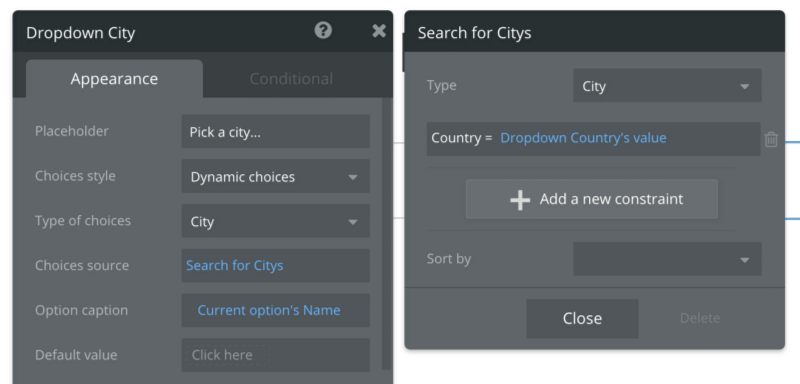
Let’s move to the second dropdown. We want the list of options to be dynamic, and only display the cities that are located in the country that is selected in the first dropdown. Let’s open the Search Palette.
What we want to search for is cities, and we want to add a constraint on the country. It should be the value of the Dropdown Country.
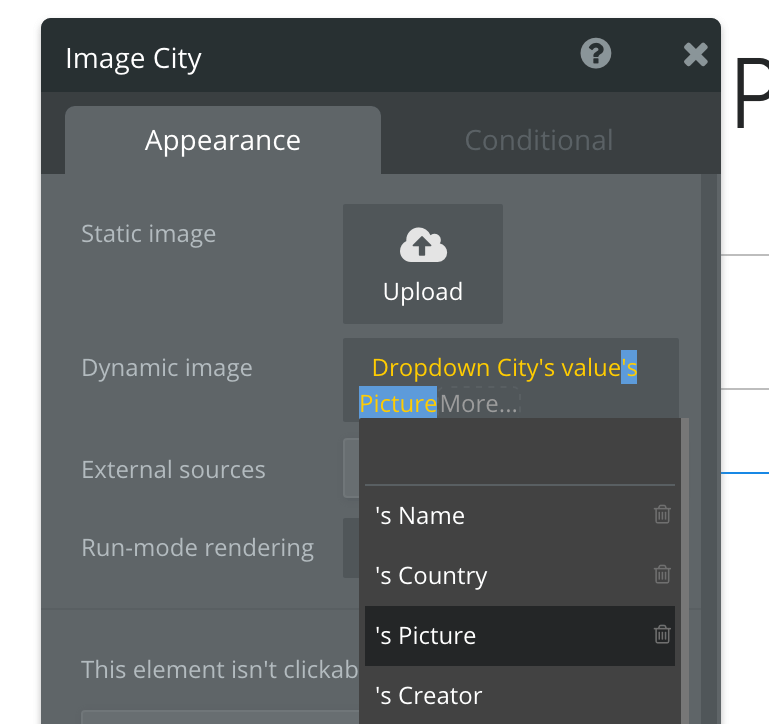
Alright, we just need to define which image we want to show in our image element, and we’re done. We double click on the image and look at the Dynamic Image field. When we click on ‘Insert dynamic data’, I can choose the content of the dropdown ‘City’, and then get the image.
And we’re done! In a few minutes, we’ve build a pretty advanced data structure with responsive content. You can add a lot of feature to such an app, voting on pictures, looking for hotels, booking them, etc.
Learn more about Bubble and sign up for free to begin your no code journey:
Build for as long as you want on the Free plan. Only upgrade when you're ready to launch.
Join Bubble